
Table of Contents
- What Does “Archive” Mean in Gmail?
- Where Do Archived Emails Go?
- How to Identify an Archived Email?
- Step by Step: How to Find Archived Emails in Gmail
- Gmail’s AI Smart Search (2025 Update)
- How to Move Archived Emails Back to the Inbox?
- How to Automatically Archive Messages in Gmail?
- Organizing Archived Emails with Labels
- Recovering or Moving Archived Messages Back to the Inbox
- Advanced Search Commands (Cheat Sheet)
- Finding Archived Emails in the Gmail App
- Troubleshooting Tips
- Summary: Your Gmail Archive Toolkit
- Conclusion
If you use Gmail, your inbox can fill up fast with updates, newsletters, receipts, and personal chats. To keep things organized, many people archive emails instead of deleting them. But what happens when you need one of those emails later?. Archived emails in Google Gmail, including smart tricks using Gmail’s built-in features, tips on mobile and desktop.
What Is Archiving in Gmail?
Archiving in Gmail simply removes emails from your Inbox without deleting them. Archived messages stay in your account, organized by date or labels, and are fully accessible via All Mail. Unlike trash, archived messages remain indefinitely unless deleted.
Why Use Archive?
Archiving helps you tidy up your Inbox without losing important messages. You can preserve emails that matter for reference, attachments, or legal documentation while keeping your inbox clutter-free and easier to manage.
What Does “Archive” Mean in Gmail?
When you archive a message in Gmail, it’s removed from your Inbox, but not deleted. Think of it like putting a paper document in a drawer; you can still get it anytime.
Archived emails:
- Stay in your account.
- Keep their labels and data.
- Can be searched, moved, or replied to.
- Return to the Inbox if someone replies.
So archiving helps keep your inbox clean while holding onto important information.
Where Do Archived Emails Go?
In Gmail, all your emails, archived, inbox, sent, etc., live in a hidden label called “All Mail.”When you archive something, Gmail just removes the “Inbox” label from that email.
1. Accessing All Mail On the Mobile App
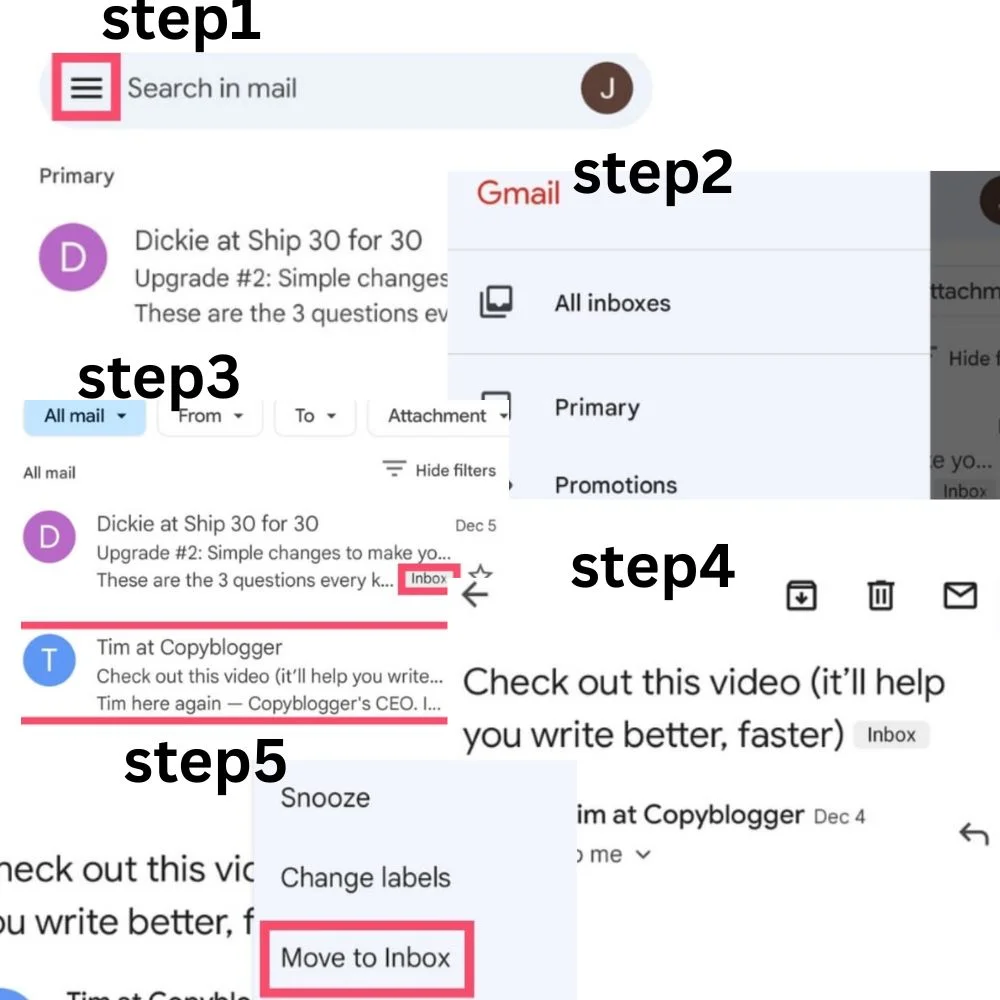
Step 1:
Sign In to Your Gmail Account. Open your preferred web browser. Go to the command log in with your credentials.
Step 2:
Expand the Full List of Folders. Look at the left-hand menu inside your Gmail dashboard. Click on“More” to reveal additional folders, including All Mail.
Step 3:
Open the “All Mail” Section. Click“All Mail” to view every email in your account. This includes Inbox messages, archived ones, and even labeled emails.
Step 4:
Identify Archived Emails. Browse the list or use the search bar to find the message you’re looking for. Emails that have been archived won’t show the “Inbox” label, which is how you can spot them.
Step 5:
Return the Email to Your Inbox. Click to open the archived email. Select the “Move to Inbox” button at the top.
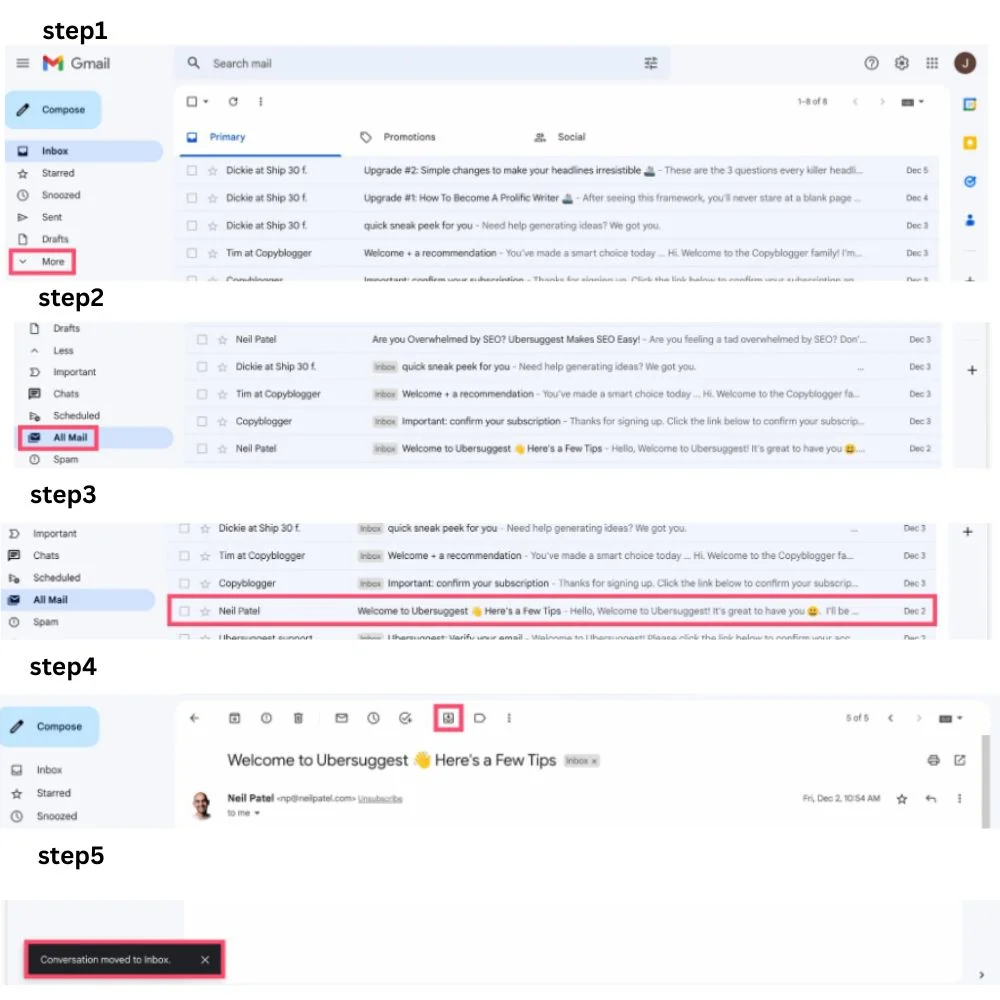
Accessing All Mail On Desktop:
- Step 1:
- Sign In to Your Gmail Account. Open your preferred web browser. Go to the command log in with your credentials.
- Step 2:
- Expand the Full List of Folders. Look at the left-hand menu inside your Gmail dashboard. Click on“More” to reveal additional folders, including All Mail.
- Step 3:
- Open the “All Mail” Section. Click“All Mail” to view every email in your account. This includes Inbox messages, archived ones, and even labeled emails.
- Step 4:
- Identify Archived Emails. Browse the list or use the search bar to find the message you’re looking for. Emails that have been archived won’t show the “Inbox” label, which is how you can spot them.
- Step 5:
- Return the Email to Your Inbox. Click to open the archived email. Select the “Move to Inbox” button at the top.
- Tap the menu icon(three lines) in the top-left.
- Scroll down and tap All Mail.
Now you’re seeing everything, including archived messages.
How to Identify an Archived Email?
Gmail doesn’t add a “Archived” tag, but here’s how to tell:
- If an email doesn’t have the “Inbox” label beside it, it’s archived.
- In “All Mail,” messages with no label are archived.
- If the sender replies, Gmail automatically returns the message to your Inbox.
Pro Tip: Archived emails are sorted by date, so recent ones are easier to find.
Step by Step: How to Find Archived Emails in Gmail
1. Search All Mail Using the Search Bar
Gmail’s search bar is powerful and now even smarter with Google’s 2025 AI update. You can search using:
- Keywords.
- Contact names.
- Subject lines.
- File types.
- Time ranges.
2. Use Smart Search Filters
Gmail supports advanced search filters called operators. Here are some useful ones:
| Operator | What It Does |
| from:[email protected] | Emails from John |
| subject: meeting | Emails with “meeting” in the subject |
| has: attachment | Only emails with attachments |
| after:2025/01/01 before:2025/06/30 | Between specific dates |
| in: anywhere | Searches archived + inbox + spam |
Tip: The search bar is available on both desktop and mobile.
Gmail’s AI Smart Search (2025 Update)
Gmail’s latest AI-powered search automatically highlights your most relevant emails. As of early 2025, it shows:
- Most clicked emails.
- Emails from frequent contacts.
- Attachments or links you often open.
1. Toggle View:
- You can switch between “Most Relevant” and “Most Recent”.
- Just tap the new filter icon next to the search bar.
This AI feature is helpful when your search terms are broad or when you forget exact details.
How to Move Archived Emails Back to the Inbox?
Once you’ve found your archived message, you can easily restore it:
cyber
1. On Desktop:
- Check the box next to the email.
- Click the“Move to Inbox” button (envelope icon at the top).
2. On Mobile:
- Open the email.
- Tap the three-dot menu.
- Choose “Move to Inbox.”
Now the message will show up in your regular Inbox view again.
How to Automatically Archive Messages in Gmail?
You can even set Gmail to auto-archive certain types of messages using filters.
1. Here’s How:
- Click the gear icon and select See All Settings.
- Go to the Filters and Blocked Addresses
- Click Create a new filter.
- Add criteria (like sender or subject).
- Click Create filter
- Check Skip the Inbox (Archive it)and apply it.
Now, similar emails will go straight to All Mail.
Organizing Archived Emails with Labels
Gmail uses labels instead of folders. Labels help categorize messages, even if archived.
- Emails can have multiple labels.
- You can label messages before or after archiving.
- Labels are searchable:
label: work has: attachment from:[email protected]
Pro Tip: Create your own “Archived – Projects” label to organize old work.
Smart AI-Powered Search
Since March 2025, Gmail’s search now uses AI to rank results by relevance instead of just date, showing frequent contacts, recently accessed items, and most clicked messages higher in results. You can toggle between “Most relevant” and “Most recent” views as needed.
Recovering or Moving Archived Messages Back to the Inbox
Once you find the message in All Mail:
- On desktop: hover or open the email, check the box next to it, then click Move to Inbox at the top toolbar.
- In Gmail app: open the message, then tap the menu (three dots) and choose Move to Inbox.
If a conversation receives a reply, Gmail will automatically return it to your Inbox even if it was archived earlier.
Advanced Search Commands (Cheat Sheet)
Here’s a list of Gmail operators for finding archived or specific emails faster:
| Operator | Use |
| in: all or in: anywhere | Includes archived emails |
| label: important | Shows labeled messages |
| is: read, is: unread | Filter by read status |
| filename: pdf | Files of a specific type |
| size:5MB | Emails larger than 5MB |
| category: social | Emails from social sites |
| cc:, bcc: | Search recipients |
Combine multiple commands to drill down fast!
Finding Archived Emails in the Gmail App
The mobile Gmail app supports almost all features, too. Here’s how:
- Tap the menu icon on the top-left.
- Scroll down to All Mail.
- Use the search bar at the top.
- Type your query using keywords or filters.
- Tap an email to view or move it.
Troubleshooting Tips
- Not Seeing All Mail?
Click “More” in the left menu. All Mail is sometimes hidden. - Archived Messages Missing?
Use in: anywhere in the search bar. - Can’t Find It Still?
Check if the email was deleted or moved to Spam. Deleted messages stay in Trash for 30 days only. - Too Many Results?
Add filters like date, sender, or keywords.
Summary: Your Gmail Archive Toolkit
| Action | How-To |
| See all archived emails | Go to “All Mail” |
| Find by keyword | Use Gmail’s smart search |
| Move back to the Inbox | Use “Move to Inbox” |
| Organize archived emails | Add or search by labels |
| Automate archiving | Use Gmail filters |
| Use AI search | Toggle between relevant and recent |
Conclusion
Knowing how to find archived emails in Gmail is a skill every user should have. Whether you’re clearing inbox clutter, retrieving work reports, or just checking on a forgotten chat, Gmail offers fast and smart ways to search through your history. Gmail now helps you find what matters most, even if it’s buried deep in the archive.