
Table of Contents
Upgrading a computer lab is about giving students and teachers fast, reliable machines and a space that fits today’s learning style. Think of it like taking a tired old car and turning it into a performance vehicle faster, smoother, and ready for modern challenges. In the next sections, I’ll walk you through everything, from hardware basics to smart design, ergonomics, and future-proofing, all in easy-to-understand terms that you can act on right away.
Why Speedy PCs Matter
When computers are slow, students wait, teachers stop, and learning comes to a halt. Slow machines mean wasted minutes on loading times or frozen screens. Upgrading to faster PCs helps:
- Keep lessons smooth and engaging
- Support multitasking (docs, videos, research at once).
- Power modern educational tools (coding platforms, 3D apps, virtual classes).
- Reduce tech support calls and downtime.
A fast lab fuels curiosity and productivity, exactly what the modern classroom needs.
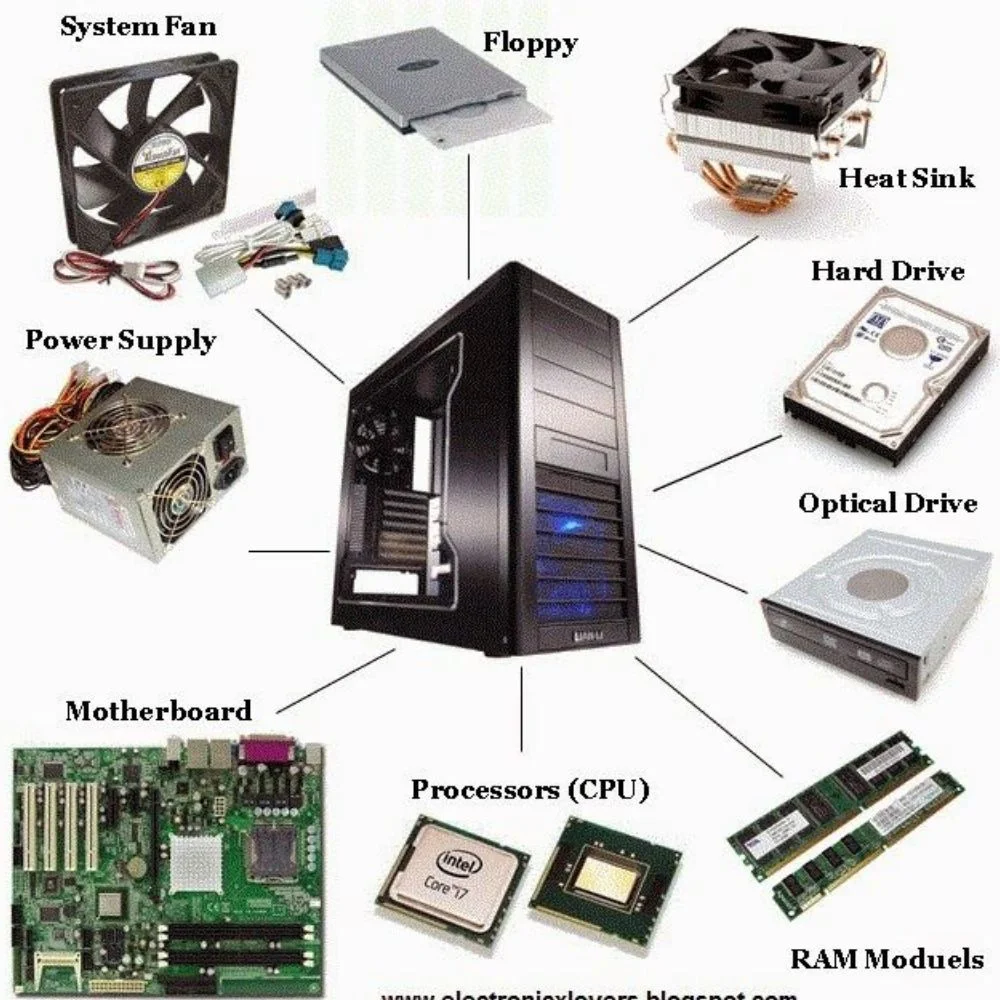
Core Components to Upgrade
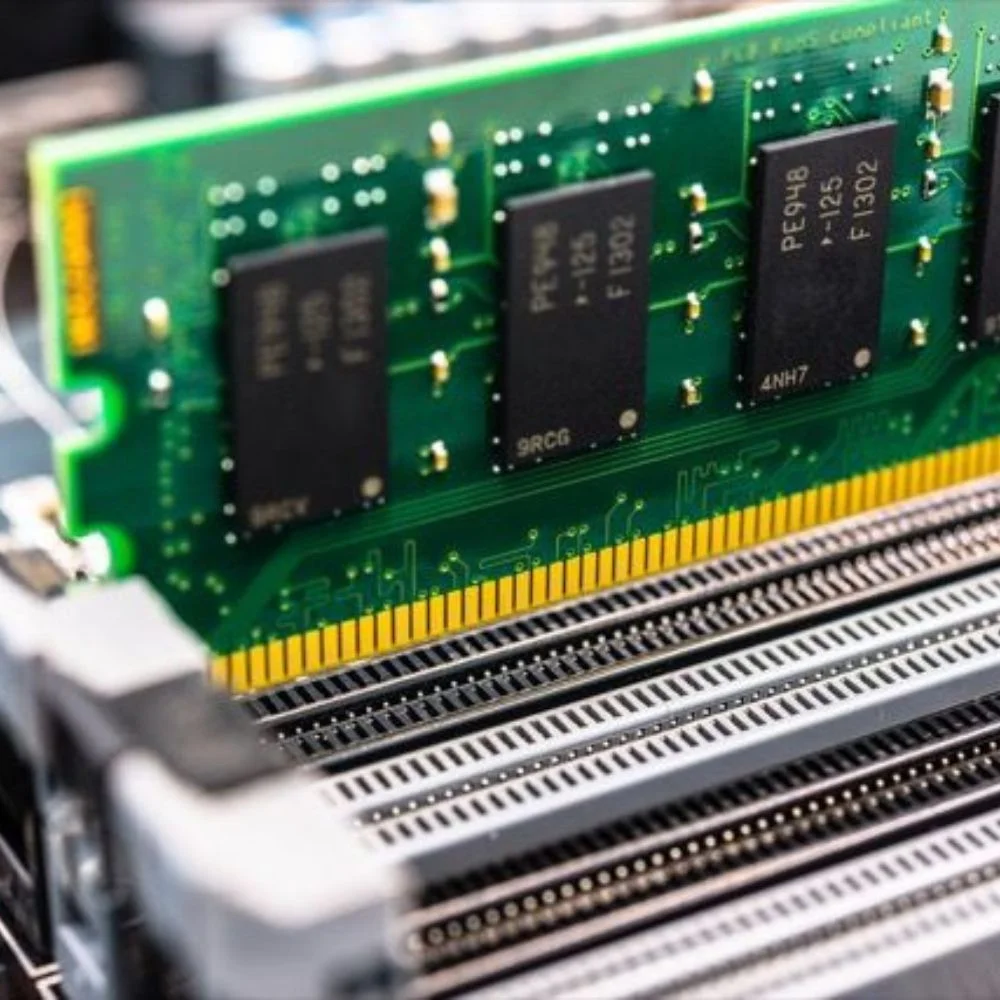
Processor and RAM
- Choose fast multi-core CPUs for modern software.
- Install at least 8–16 GB RAM, ideally 16 GB for multitasking .
Storage: SSD FTW
- Replace old HDDs with SSDs for big speed boosts .
- NVMe SSDs are even fastergreat if budget allows.
Graphics Cards (if needed)
- Upgrade GPUs if students do video editing, AI, or coding that needs it .
- For basic use, integrated graphics may still work.
Motherboard and PSU
- Ensure compatibility with new CPUs, more RAM, and stronger GPUs.
- Use quality Power Supply Units with headroom for upgrade
Peripherals
- Use ergonomic keyboards, mice, and 24”+ monitors for comfort and focus.
Smart Room Design & Layout
A well-planned room layout boosts efficiency, comfort, and teamwork.
1. Layout Ideas
- Open floor plan: with flexible or mobile desks encourages collaboration.
- U-shaped desks: allow teacher access and peer visibility.
- For privacy and test focus, consider the four-leaf clover layout.
2 . Ergonomic Furniture
- Adjustable chairs and desks help maintain healthy posture.
- Aim for neutral wrist position, feet flat, and correct monitor height .
- Durable tables with cable management systems.
Networking & Power: Never Skip These
1. Networking
- Use Gigabit Ethernet for stable speed.
- Strong Wi Fifor mobile devices and remote access.
- Add firewalls, VLANs, and antivirus to safeguard data.
2. Power Setup
- Install UPS units to protect against power cuts.
- Use surge protectors and PDUs for clean cable routes.
- Plan extra outlets or in-desk power modules.
Software & Management Features
1. Operating Systems & Apps
- Choose OS based on purpose: Windows for general use, Linux for coding, macOS for design .
- Install essential tools: Office suites, coding environments, 3D modeling, Adobe tools .
2. Management Tools
- Use remote management toolsto update and troubleshoot efficiently.
- Software deployment:eases app rollouts and version contro
- Monitoring & backup software:protect student work and system health.
3. Security Measures
- Use antivirus, firewalls, access controls.
- Regular backups save important files and settings.
Ergonomics & Environment
Make the space feel comfortable and safe to work in.
1. Seating & Comfort
- Use adjustable chairs that support different heights .
- Tables should offer room for devices and paper .
2.Lighting & Acoustics
- Combine natural light with indirect fixtures and desk lamps .
- Add acoustic panels or rugs to reduce noise .
3.Cooling & Ventilation
- Add air conditioning or fans to offset heat from electronics .
4.Aesthetic & Accessibility
- Bright colors, plants, motivational posters boost creativity .
- Design layouts that work for all students, including those with disabilities .
A computer lab is a long-term investment plan ahead.
1.Budget Strategy
- Prioritize core components: CPUs, RAM, SSDs, monitors.
- Balance high-cost hardware with durable furniture and software licenses.
- Allocate 15–30% of budget for future replacement/updates .
2.Upgrade Timeline
- Plan a 3 to 5 year replacement cyclefor computers; software may need yearly updates .
- Design the setup to allow easy additions (extra RAM slots, GPU support).
Future-Proof Labs with Makerspaces & Innovations
Go beyond standard tasks with creative features.
1.Makerspaces
- Add 3D printers, CNC tools for hands-on STEM learning .
- Provide room for tinkering, prototyping, and creativity.
2.Bring-Your-Own-Device (BYOD)
- Support students’ own laptops and tablets with WiFi and power stations.
- Use docking setups and quick-share tools for easy integration .
3.Cloud & Remote Learning
- Offer virtual desktops powered from cloud servers.
Install interactive whiteboards and projectors for hybrid classes .
Maintenance, Training, and Support
Keep the lab running smoothly over time.
1.Maintenance Plan
- Schedule regular checks on hardware, cable systems, and cooling.
- Clean and update software to avoid slowdowns and security issues .
2.Staff Training
- Train teachers and tech staff in digital tools, updates, and troubleshooting.
- Promote safety, ergonomic setup, and user support.
3.Usage Monitoring
- Track computer usage and lab bookings.
- Analyze performance to guide future upgrades.
Real Examples & Cost Breakdown
Here’s a sample upgrade plan inspired by real school budgets:
Sample Lab Upgrade Plan
| Item | Qty | Unit Cost | Total Cost |
| Fast PCs (8 GB RAM, SSD) | 25 | $600 | $15,000 |
| 24″ Monitors, ergonomic gear | 25 | $150 | $3,750 |
| Networking (switches, routers) | — | — | $3,000 |
| UPS units & surge protection | 10 | $200 | $2,000 |
| Desks, chairs (ergonomic) | 25 | $200 | $5,000 |
| Software licenses & LMS | — | — | $4,000 |
| Teacher/staff training | — | — | $2,500 |
| Maintenance & upgrades fund | — | — | $3,000 |
| Total | $38,250 |
This sample shows how a $40k budget could modernize a 25-station lab, with smart allocation across hardware, software, infrastructure, and training.
Checklist Before You Start
- Define lab’s main purpose (study, coding, makerspace).
- Measure space and plan layout.
- Set hardware specs: CPU, RAM, SSD, monitor quality.
- Plan network and power upgrade
- Choose software and management tools.
- Select furniture that’s ergonomic and durable.
- Secure budget and schedule upgrades.
- Train staff and set maintenance routine
Conclusion
Upgrading your computer lab with fast PCs is more than a tech upgrade it changes how students learn and engage. By following the steps above choosing the right hardware, designing a smart room, setting up power and networks, installing useful software, caring for ergonomics, budgeting wisely, and planning future upgrades you’ll build a lab ready for today and tomorrow.