
Table of Contents
- Why You Should Disable Ads on Android?
- Use Android’s Built-In Ad Settings
- Block Pop-Up Ads from Apps
- Block Ads in Browsers
- Install Trusted Ad Blocking Apps
- Use DNS-Based Ad Blocking
- Network-Wide Ad Blocking
- Manage Notifications & Suspicious Apps
- Avoid Ad-Packed Apps & Use Ad Free Alternatives
- Rooted Phones & Advanced Modules
- Keep Updated After Google’s Changes
- Maintain Your Ad Blocking Setup
- FAQ
- Step-by-Step Action Plan
- Conclusion
Ads everywhere on your Android whether in apps, browsers or notifications can be frustrating and invasive. They slow your phone, waste data and even risk your privacy. In this guide, I’ll Walk you through practical, easy-to-follow steps to disable all annoying ads on Android. You’ll understand why these ads appear, what risks they pose and how to completely block them using both built-in tools and trusted apps with everyday words and clear advice.
Why You Should Disable Ads on Android?
Ads may seem harmless, but they bring multiple issues:
- Annoyance & distraction: Pop-ups interrupt what you’re doing and steal your attention.
- Performance hits: Ads use data, battery and memory, making your phone slower.
- Privacy concerns: Many ads track your online activities and build profiles about you.
- Security exposure: Some ads carry malware or phishing attacks.
By clearing ads, your phone runs smoother, uses less data and keeps your personal info safer.
Use Android’s Built-In Ad Settings
Modern Android phones include some ad control:
- Go to Settings → Google.
- Tap Privacy & security → Ads.
- Turn on “opt out of Ads Personalization” or similar labeled options.
This stops Google from delivering ads based on your activity. It won’t remove ads entirely but curtails targeted ones.
Block Pop-Up Ads from Apps
Some apps show pop-up ads outside their interface:
- Open Settings → Apps (or Manage apps).
- Identify apps showing pop-ups (social apps, unknown games).
- Tap App info → Notifications, then turn off notifications.
- Also check Display over other apps and toggle it off if enabled.
This stops intrusive ads appearing on your screen via apps.
Block Ads in Browsers
1. Google Chrome
- Open Chrome → tap ⋮ → Settings → Site Settings → Pop-ups & redirects → set to Blocked.
- Open Cookies settings and choose “Block third-party cookies” to cut down on tracking and ads.
2. Mozilla Firefox
- Go to Menu, tap Settings, then Notifications, and turn them off.
- Install uBlock Origin through Firefox Add-ons this open-source blocker stops banners, videos, and scripts.
3. Brave or Privacy Browsers
Brave has built-in ad blocking. Use it or Firefox with uBlock Origin for strong protection.
Install Trusted Ad Blocking Apps
For system-wide ad blocking, consider:
1. Total Adblock
Recommended as best overall for Android blocks ads even in some apps like YouTube.
2. AdGuard
A top choice blocks ads across apps and browsers using a local VPN, no root required.
3. Blokada
Free and open source operates via local VPN and blocks ads and trackers.
4. NordVPN Threat Protection & Surfshark CleanWeb
Ad and tracker blockers bundled with VPN apps great for privacy.
Use DNS-Based Ad Blocking
You can block ads at the DNS level without installing full-scale apps:
- Go to Settings → Network & Internet → Private DNS.
- Select Private DNS provider hostname.
- Enter: dns.adguard.com.
This filters ad domains for all apps using DNS, with low battery use.
Network-Wide Ad Blocking
Want to ban ads on every device at home?
- Pi-hole on a Raspberry Pi or router blocks ad domains via DNS.
- AdGuard Home offers similar network-wide filtering with an easy dashboard.
You can even route your mobile traffic through this network when away from home by using VPNs.
Manage Notifications & Suspicious Apps
Ads can show up unexpectedly via notifications:
- Go to Settings → Apps → Notifications.
- Disable notifications for apps showing unwanted ads.
Also check installed apps:
- Use Safe Mode to uninstall recently added suspicious apps useful for removing malware.
Avoid Ad-Packed Apps & Use Ad Free Alternatives
Even with blockers, some apps keep pushing ads:
- Choose ad-free or paid versions when available.
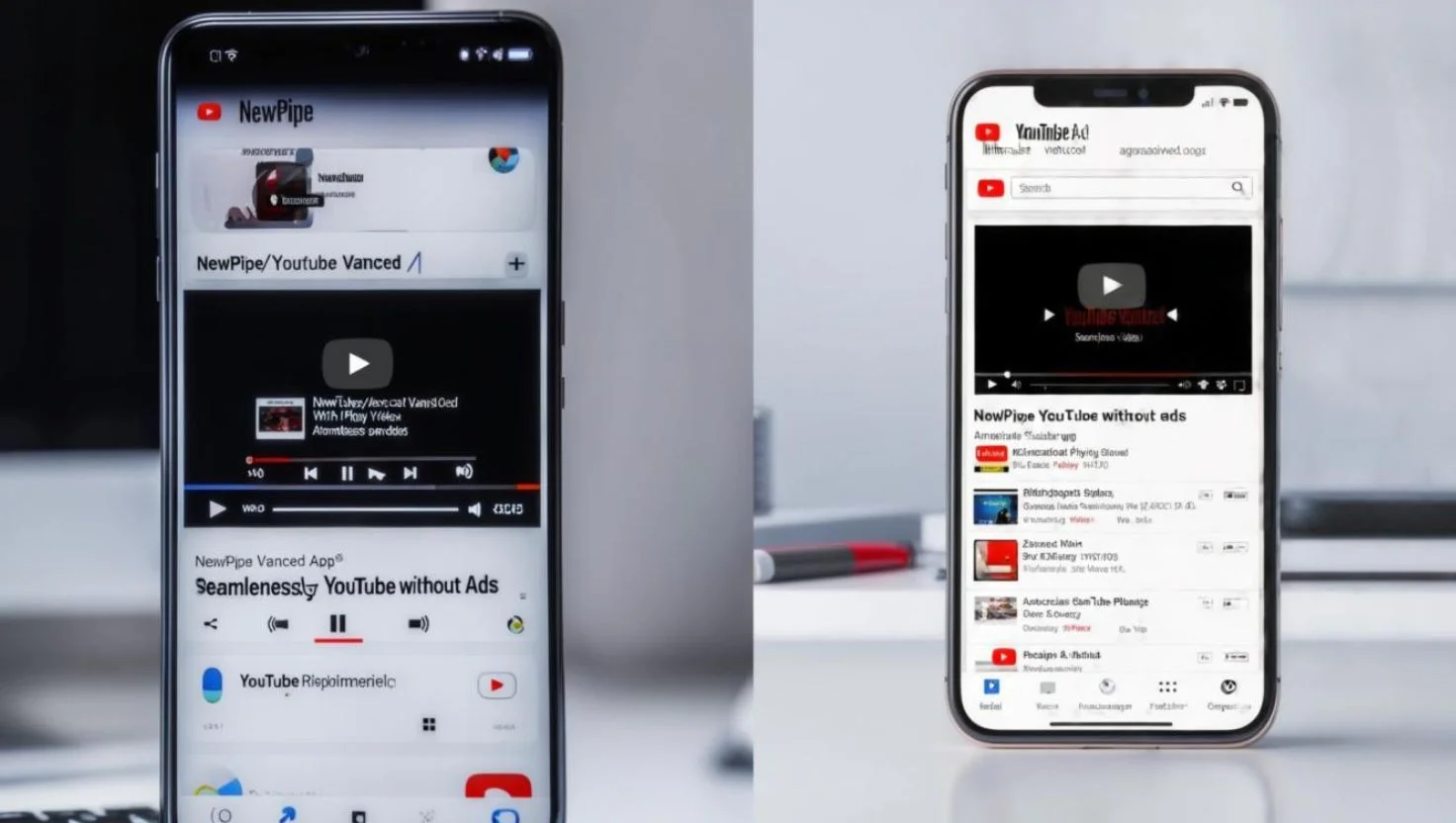
- Use alternative apps like NewPipe for YouTube instead of the ad-heavy official app.
Rooted Phones & Advanced Modules
For advanced users with rooted phones:
- AdAway uses the hosts file to block ad domains across the system.
- Xposed modules like MinMinGuard or YouTube AdAway can remove in-app ad space.
Keep Updated After Google’s Changes
Google Chrome restricts powerful ad-blocking extensions under Manifest V3. Firefox, Brave, and system-level apps still work well. For full control, avoid Chrome and use browsers or apps that support strong blockers.
Maintain Your Ad Blocking Setup
- Regularly update ad blockers and filter lists.
- Regularly check your DNS and VPN settings, as they can sometimes reset after updates.
- Monitor app permissions and notifications after installing new apps.
- Don’t use too many blocking tools one system-wide solution plus browser blocker is enough.
FAQ
1. Can ads still be blocked?
Yes, system-wide tools like AdGuard or DNS filters can remove most ads across apps. Some first-party ads (e.g., inside YouTube) may only be bypassed with advanced solutions.
2. Are ad-blockers legal?
Yes, it’s legal and common. Many people use blockers to improve performance and avoid trackers.
3. Will I hurt creators?
Some websites rely on ads. Consider allowlisting sites you support or making direct donations.
Step-by-Step Action Plan
- Turn off ads’ personalization in Android Settings.
- Block app pop-ups via Notifications & Overlays settings.
- Install a browser blocker (uBlock Origin in Firefox or use Brave).
- Set up dns.adguard.com as Private DNS.
- Install AdGuard or Blokada for system-wide blocking.
- Optionally, use Pi-hole for network-wide protection.
- Avoid ad-heavy apps; opt for ad-free versions or paid alternatives.
Conclusion
By combining Android’s built-in controls, browser blockers, DNS filtering and trusted apps like AdGuard or Total Adblock, you can effectively disable all annoying ads on Android. Your phone will be faster, your data use lower, and your privacy better protected. Spend a few minutes setting this up you’ll notice a cleaner, smoother experience every time you use your phone. Let me know if you’d like links, screenshots or help choosing tools.